

Is Your Remote Working Setup Actually Working Against You?
You’ve got your laptop, a decent Wi-Fi connection, and a strong cup of coffee. Surely that’s all you need for a productive remote work setup, right? Not quite. Millions of remote workers across Australia and the world have discovered the hard way that a makeshift desk arrangement and a laptop balanced on a pillow are a one-way ticket to neck pain, missed deadlines, and afternoon slumps you can’t explain. Remote work productivity isn’t just about discipline or drive. It’s deeply tied to your physical environment, your tools, and the habits you build around them.
The good news? Most mistakes are simple to fix once you know what they are. Whether you’re new to working remotely or you’ve been at it for years, chances are one (or a few) of the following is quietly draining your output. Here are the 10 remote work setup mistakes that are costing you more than you realise and what to do about each one:
- Working Without a Dedicated Workspace
- Ignoring Your Posture and Your Screen Height
- Skipping the Second Screen
- Using a Flimsy, Unreliable Keyboard and Mouse
- Neglecting Cable and Gear Organisation
- Underestimating Background Noise in Your Remote Work Setup
- Forgetting About Good Lighting
- Not Having a Reliable USB-C Hub or Travel Adapter
- Going Paperless With No Digital System to Replace It
- Letting Your Hydration and Coffee Ritual Slide
Why Your Home Setup Matters More Than You Think
Remote Work Has Changed. Has Your Setup Kept Up?
When the shift to remote work happened almost overnight for many workers, most people grabbed their laptops and set up camp at the kitchen table. What was meant to be temporary for many became permanent, and the kitchen table never really went away. According to a survey, 71% of remote workers reported that working from home improved their work-life balance, and 56% said it boosted their productivity. But those gains don’t happen automatically. They depend heavily on having the right remote work setup in place.
Working remotely has evolved from a crisis-driven experiment into a long-term professional lifestyle. The problem is that many people’s remote work setup hasn’t evolved alongside it. The laptop-on-the-couch approach might have worked for a week or two, but after months or years, it quietly erodes your focus, your posture, your team collaboration, and your ability to separate personal life from professional life.
A thoughtful home office setup with the right desk, equipment, and environment is the foundation of sustainable remote productivity. And for those days when home simply isn’t doing the job, a coworking space like Workit Spaces offers a professional-grade environment where everything is already sorted for you.
Your Remote Work Setup Sorted, From Day One
Skip the trial and error. Access professional office spaces in Sydney with ergonomic desks, fast Wi-Fi, and everything you need to hit the ground running. Call today – (02) 9381 9100
The Real Cost of a Poor Remote Work Setup
Bad Gear and Bad Habits Don’t Just Hurt Your Back. They Hurt Your Output.
There’s a common misconception that working remotely is about freedom from the office. But the reality is that remote workers carry more responsibility for their own environment than any office worker ever has. And when that environment isn’t set up well, the costs compound quickly. Here’s what a poor remote work setup actually costs you:
- Your body: Poor posture from a low kitchen table leads to neck and shoulder pain that makes it hard to focus in the afternoon.
- Your time: Constant tab-switching on a single laptop screen quietly eats into your working hours. Research suggests up to 30 minutes per day.
- Your concentration: Background noise bleeds into your video calls and kills your ability to do deep, focused work.
- Your energy: Dim lighting causes eye strain and fatigue that builds steadily throughout the day, long before your working hours are up.
- Your work-life balance: Without a dedicated workspace, personal life and professional life blur together, and both suffer for it.
These aren’t minor inconveniences. They are productivity leaks. The right tools, the right space, and a few smart habits make a genuinely big difference. Here’s where most remote workers get it wrong, and how to fix it.
10 Remote Work Setup Mistakes That Hurt Your Productivity
Mistake 1: Working Without a Dedicated Workspace
One of the most common mistakes remote workers make is not having their own space for work. The dining room doubles as a desk, the bed becomes a workspace on slow mornings, and the couch fills in when energy levels drop. It feels flexible, but it’s working against you in ways you might not notice.
Working from the kitchen table or couch creates two compounding problems:
- Psychologically: Your brain relies on environmental cues to shift between modes. Rest, creativity, focus, relaxation. When your dining room table is where you eat breakfast and where you join Microsoft Teams calls and tackle reports, those signals get muddled. The boundary between personal time and professional time becomes invisible, and work bleeds into your personal life.
- Physically: Makeshift surfaces are rarely at the right height. Most dining tables are too high for comfortable typing, which forces your shoulders up and your wrists into awkward angles throughout the day.
Over time, this creates exactly the kind of musculoskeletal stress that researchers from PMC/NCBI have documented as a key consequence of improper workstation setups during remote work.
The fix is straightforward: carve out your own space, even in a small home. A corner of a bedroom, a compact standing desk in the lounge. It doesn’t need to be elaborate. What matters is that it’s yours, it’s consistent, and your brain starts associating it with work mode.
On days when home just isn’t working, whether due to distractions, a small space, or a need to feel more switched on, Workit Spaces’ flexible hot desks and virtual offices give you a ready-made, dedicated workspace with no setup required. Just show up and get to work.
Mistake 2: Ignoring Your Posture and Your Screen Height
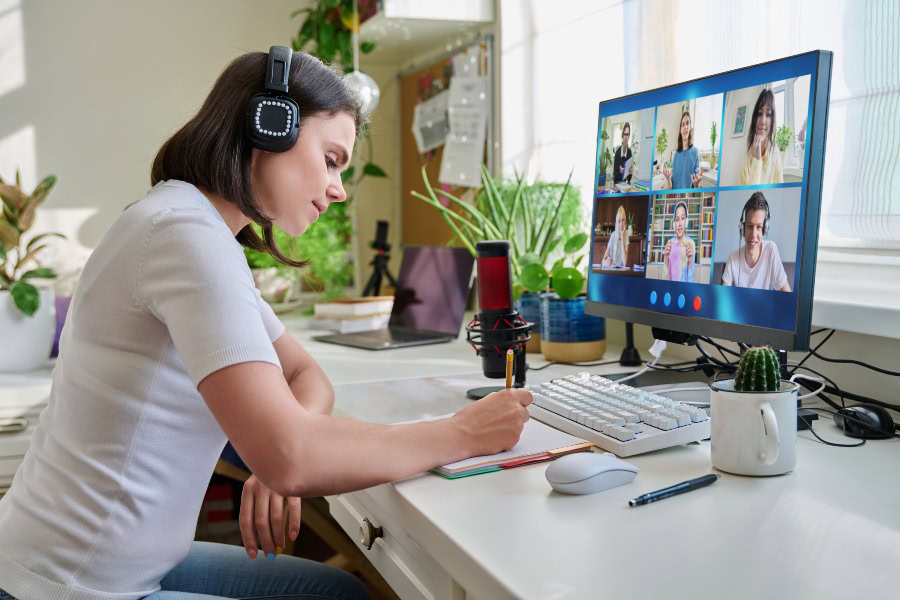
Ask most remote workers how they feel by 3 pm, and you’ll hear the same answer: stiff neck, tight shoulders, maybe a dull headache creeping in. This isn’t just tiredness. It’s what happens when your remote work setup ignores your posture for hours at a time.
Research is clear on this. A study published in PMC (NIH) found that musculoskeletal disorders affect up to 72% of office workers, with remote workers particularly at risk due to poor workstation design and a lack of ergonomic equipment. A survey cited by the American Chiropractic Association found that 92% of remote workers have experienced shoulder or neck pain from prolonged sitting and poor posture. When you’re hunching over a laptop on a kitchen table for eight hours a day, those numbers stop being surprising.
The basics to get right:
- Screen height: Your screen should sit at eye level. A laptop stand and portable screen riser are cheap, easy fixes that pack flat into a backpack.
- Arm position: Aim for roughly 90 degrees at the elbow when typing to avoid wrist and shoulder strain.
- Chair support: An ergonomic chair with proper lumbar support addresses the biggest physical risk of long remote working hours.
- Budget option: Even a sturdy hardcover book under your laptop, paired with an external keyboard, can make a meaningful difference to your eye line.
A good laptop stand isn’t a luxury. It’s an investment in your ability to keep working without pain.
Workit Spaces offices are equipped with proper desks and ergonomic chair options, so you don’t have to worry about posture every time you come in. It’s one less thing to think about on your busiest days.
Mistake 3: Skipping the Second Screen to Boost Your Remote Setup
Here’s one of the most impactful changes you can make to your remote work setup, and it’s one that many people put off indefinitely: adding a second screen. Whether you go for a portable monitor that plugs in via USB-C or a full desktop display, the productivity gains are real and well-documented.
A portable extra monitor that connects via USB-C is a practical solution for those who move around. Many come with a sleeve that folds into a kickstand, a full HD 1080p display, and a simple plug-and-play connection. Keep your notes or keyword plan on one screen and your working document on the other. It makes the whole day feel less cramped and far more organised.
Mistake 4: Using a Flimsy, Unreliable Wireless Keyboard and Mouse
When your laptop’s on a stand at eye level, where it should be, you need a wireless keyboard and wireless mouse to type and navigate without hovering your arms in the air. The mistake most people make is opting for the cheapest option available, only to spend the next six months dealing with a keyboard that drops its Bluetooth connection every twenty minutes and a mouse that skips across the screen.
These micro-frustrations are easy to dismiss, but they compound quickly. Every reconnection attempt, every time your cursor jumps to the wrong spot mid-sentence, every lag during a video conferencing app call interrupts your flow and breaks your concentration in ways that take time to recover from.
What to look for in a reliable wireless setup:
- Keyboard: Choose between compact or full-size with a number pad, depending on your workflow. A mechanical keyboard or MacBook keyboard offers a noticeably better typing experience for long writing days.
- Mouse: An ergonomic mouse that fits your hand reduces wrist strain over time. Worth the investment if you’re clocking long hours.
- Connection: Opt for a USB-A dongle over Bluetooth where possible for a faster, more stable connection.
- Budget: Don’t cheap out here. A reliable keyboard and mouse that lasts years costs far less than the cumulative frustration and lost focus of a faulty setup.
An external keyboard paired with your laptop stand means you can type naturally at desk height while your screen sits at eye level. The combination is the closest most remote workers will get to a proper ergonomic office setup without spending a fortune.
Members at Workit Spaces have access to properly equipped workstations, so you won’t need to bring every peripheral along on drop-in days.
Mistake 5: Neglecting Cable and Gear Organisation
Picture this: you reach into your bag after a travel day and find your mouse has been crushed under a charger. Your USB-C cable is tangled into a knot with your headphone cord. Your docking station has been jostling around loose in the main compartment for hours. It’s a mess, and it’s also an expensive one.
A simple system goes a long way:
- Padded laptop sleeve: Protects your screen and keeps it separate from heavier items in your bag.
- Electronics bag or cable pouch: One dedicated place for all your chargers, USB-A adapters, and cables means you’re never digging around at the bottom of your bag before a meeting.
- USB-C hub: Consolidates HDMI, USB-A ports, SD card, and charging into one device, cutting the number of individual cables you carry in half.
- Case for your mouse: A small investment that saves an expensive replacement when things get jostled in transit.
The organisation also has a psychological benefit. A tangled, chaotic desk or bag creates a low-grade mental clutter that affects how you feel before you’ve even opened your laptop. A tidy, intentional remote work setup signals to your brain that you’re ready to work. It’s a small thing that makes a genuine difference throughout the day.
At Workit Spaces, the infrastructure is already in place. Power, connectivity, and clean workstations are part of the package, so you can leave the cable chaos at home.
Mistake 6: Underestimating Background Noise in Your Remote Work Setup
The sound environment of your workspace has a bigger impact on your productivity than most people realise. A child crying outside the window, a housemate running a meeting in the next room, a neighbour’s lawnmower. These aren’t just annoying. They are actively degrading your ability to think clearly, remember information, and communicate effectively on video calls.
Intermittent noise is more harmful to productivity than continuous noise. A field study of 88 employees found that 99% of participants reported their concentration was impaired by office sounds. And this was in a professional office environment, not a home setting where distractions are even less controlled.
A few options to consider, depending on your budget and preference:
- In-ear noise-cancelling headphones: Compact, portable, and ideal for travel days or coworking spaces. Great for video calls with clear sound and a good microphone.
- Over-ear noise-cancelling headphones: Better noise isolation for long, deep work sessions. Premium models offer best-in-class active noise cancellation and excellent battery life.
- Budget earbuds with hybrid ANC: A solid entry point if you’re just getting started. Look for IPX-rated options that can handle a bit of rain or sweat.
- Premium picks: If you’re in the Apple ecosystem, wireless earbuds that switch seamlessly between devices are hard to beat. Sony’s over-ear range is widely regarded as among the best for active noise cancellation and all-day comfort.
A quiet area within your home also helps. If neither is possible, a coworking space is the most reliable solution.
Workit Spaces’ dedicated offices offer a professionally quiet environment, ideal for deep focus work and clear, uninterrupted client or team calls.
Your Next Client Call Deserves a Quiet Room
No barking dogs. No housemates. Just a professional, soundproofed space built for clear, focused conversations. Book a meeting room today – (02) 9381 9100
Mistake 7: Forgetting About Good Lighting in Your Home Office

Poor lighting is the silent productivity killer that nobody talks about. Dim rooms strain your eyes over the course of a workday. Harsh overhead lighting without warmth creates a fatiguing glare on screens. And when your face is badly lit on video calls, you look unprofessional even when your ideas are sharp.
Eye strain from poor screen positioning and inadequate lighting leads to headaches, reduced concentration, and fatigue that builds gradually throughout the day. According to research on office environmental factors, lighting is one of the four key external factors, alongside background noise, temperature, and air quality, that directly affect worker productivity.
Here’s how to get your lighting right without overcomplicating it:
- Natural light first: Position your desk near a window and orient your screen to avoid direct glare. This is your best and cheapest option.
- Monitor-mounted lamp: For rooms without good natural light, a lamp that clips to your screen with adjustable colour temperature reduces eye strain and saves desk space.
- Ring light for video calls: Creates even, flattering lighting on your face without bouncing off your screen. A good webcam paired with a ring light makes a noticeable difference in how you come across on video conferencing apps.
- Warm desk lamp: For evening working hours, a warm-toned lamp is far easier on the eyes than cool overhead fluorescents.
Good lighting isn’t just about visibility. It affects your mood, your energy levels, and how present you feel throughout the day. Swapping a single overhead bulb for a warm desk lamp can change the feel of your workspace considerably.
Workit Spaces are designed with thoughtful lighting in mind, creating a professional and comfortable atmosphere that supports focus from morning to the close of business.
Mistake 8: Not Having a Reliable USB-C Hub or Docking Station
Here’s a small thing that causes a disproportionate amount of friction for remote workers: not having the right ports available when you need them. Modern laptops, including the MacBook Pro and many slim Windows machines, have stripped back their port selection to just one or two USB-C connections. That’s elegant for portability, but limiting when you need to plug in an external keyboard, connect a second screen via HDMI, upload from an SD card, and charge your phone simultaneously.
What a quality USB-C hub typically unlocks:
- HDMI output: Connect an extra monitor at a coworking space or client office without needing a separate adapter.
- USB-A ports: Plug in your wireless keyboard dongle, mouse receiver, or a flash drive without sacrificing your laptop’s USB-C connection.
- SD card reader: Useful for photographers, designers, or anyone uploading files from a camera.
- Passthrough charging: Keeps your laptop powered throughout the day while everything else is plugged in.
- Docking station upgrade: If you work from a fixed location most of the time, a docking station takes this further, supporting two monitors simultaneously and turning your laptop into a proper desktop PC-level workstation.
For those moving between locations, a compact travel adapter with built-in USB-C and USB-A ports is equally essential. Cheap adapters that spark when plugged in or fall out of the wall mid-meeting are more than annoying. They’re a genuine work interruption and a safety risk.
Workit Spaces locations come equipped with reliable power and fast internet connection across all workstations, so you’re never scrambling for the right adapter or a free port when you arrive.
Mistake 9: Ditching Paper With No Digital System to Ensure Productivity
Going paperless sounds like a smart move. Lighter bag, less clutter, better for the environment. But many remote workers make the jump without having a proper digital system to replace their notebooks, and end up with something worse: scattered notes across three apps, important client details buried in their email drafts, and no clear record of what was discussed in the last meeting.
A solid digital system for remote workers typically includes:
- Cloud storage (e.g. Google Drive): Essential for file sharing and team collaboration. Keeps documents accessible from any device and easy to share with other remote workers without email attachments.
- Real-time messaging (e.g. Slack or Microsoft Teams): Keeps your team connected and reduces the back-and-forth of email for quick updates and clear communication.
- Digital notepad: A dedicated device that replicates writing on paper. Create separate notebooks per client or project, export as PDFs, and back everything up automatically.
- Video conferencing app: A reliable platform for team calls and client meetings with clear sound and stable connection.
For file sharing and team collaboration, cloud storage tools like Google Drive are essential to ensure productivity and clear communication across distributed teams. Pair these with a solid real-time messaging tool, and you’ve got a clear communication infrastructure that works whether you’re at home, in a coworking space, or on the road.
Workit Spaces meeting rooms are ideal for focused planning sessions. Bring your digital notepad and make the most of a distraction-free space.
Mistake 10: Letting Your Hydration and Coffee Ritual Slide
This one might seem out of place in a list about remote setup mistakes. But hear this out. When you work in an office, you move more than you realise. You walk to the kitchen to grab a coffee, you fill up your water bottle at the cooler, and you step outside for fresh air between meetings. Working from home removes those natural movement triggers, and many remote workers find themselves sitting in the same spot for four hours, mildly dehydrated, running on stale air, and wondering why their energy levels have crashed.
A few easy wins to build into your remote routine:
- Keep a large water bottle on your desk: Visible enough that you actually drink from it throughout the day, big enough to last through a solid work session without constant refills.
- Reusable coffee cup: Keeps your drink hot for hours and makes the morning ritual portable on days you’re heading to a coworking space or café.
- Step outside for fresh air: Even five minutes between focused sessions has a meaningful impact on your energy and mood through the afternoon.
- Personal touches: A plant on your desk, a go-to coffee mug, a candle you light at the start of the day. Small things that make your space feel intentional and yours.
These little rituals help make your own space feel like a place you genuinely want to work in. That sense of intention and ownership matters more than you’d think for sustained remote work productivity.
Great Lighting Is Already Waiting for You
Whether you’re shooting content, recording a podcast, or just need a professional backdrop for video calls, there’s a fully equipped studio ready to book by the hour. Explore our photography and podcast studios today. Call now – (02) 9381 9100
Your Most Productive Workday Starts With the Right Remote Work Setup. Here’s How to Get It Right.
Small changes to your remote work setup add up faster than you’d expect. A laptop stand and a second screen change how your body feels by the end of the day. A reliable wireless keyboard, a pair of noise-cancelling headphones, and a well-lit desk change how effectively you can focus. Cloud storage and real-time messaging tools change how well your team can collaborate, share files, and stay connected. And a dedicated workspace, whether at home or at a coworking space, changes the psychological clarity with which you approach your working hours.
None of this needs to happen all at once. Start with the changes that will have the biggest impact on your specific situation, and build from there. If back pain is your biggest issue, prioritise the laptop stand and ergonomic chair. If distractions are killing your focus, address the noise and lighting first. If you’re constantly tab-switching on one screen, an extra monitor should be next on your list.
And remember: not every workday has to happen at home. Sometimes, the best thing you can do for your productivity and your work-life balance is a change of environment. A professional space where the desk is at the right height, the lighting is sorted, and the Wi-Fi is fast can reset your energy and give you the kind of focused, productive day that’s hard to replicate at the kitchen table.
Ready to upgrade your remote working experience? Explore Workit Spaces and find a workspace that actually works for you, whether you need a hot desk for a focused afternoon, a private office for the long haul, or a meeting room for your next important client call.